Wednesday, October 08  CDT Login News Weather Portfolio Planner WebMarks Classifieds
Home About VCI Services Support Contact VCI My Account User Agreement Newsletter


Support Menu

  • Call Wave
  • Dial Up
  • Dreamcast
  • DSL
  • Email
        | Security
        | Spam
        | Viruses
        | Eudora Light
        | Eudora Pro
        | Outlook Express
        | Exchange
        | Netscape 7
        | Mozilla

  • FAQ
  • FTTU
  • FTP
  • Homepage
  • Internet Wizard
  • Newsgroups
  • Phone Numbers
  • Spyware
  • Viruses
  • WebTV
  • Mozilla

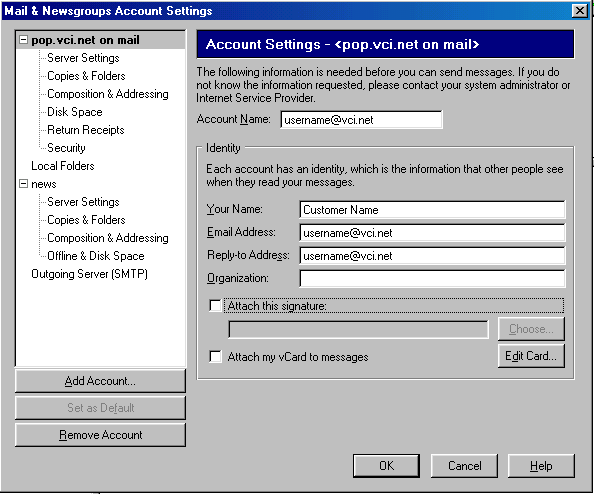
    1. In Mozilla's email client click on Edit and then "Mail and Newsgroups Account Settings"
    2. Enter your email address as the "Account Name"
    3. Enter your name in the Your Name block.
    4. Enter your email address in the Email Address block.
    5. Enter your email address in the Reply-to Address block.
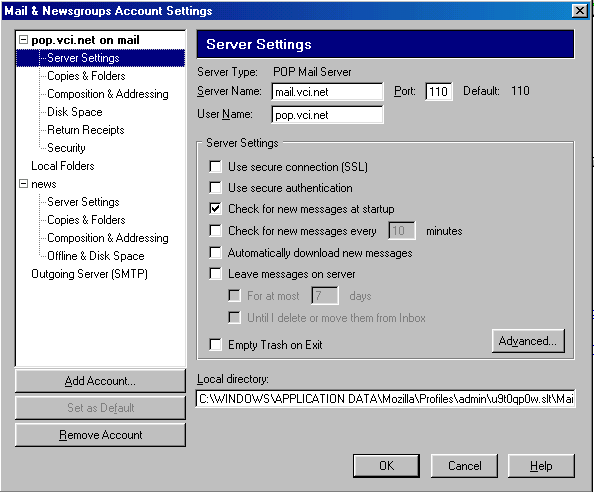
    6. Click Server Settings on the left.
    7. Enter pop.vci.net as the Server Name.
    8. Enter your username in the User Name block.
    9. The other options on this page should be set as shown in the image below.
    10. Click Outgoing Server(SMTP) on the left.
    11. Enter mail.vci.net as the Outgoing Mail Server.
    12. The other options on this page should be set as shown in the image below.
    13. Click Ok at the bottom.

        © 1995 - 2008   VCI Internet Services. All Rights Reserved.
    523 South 3rd Street   Paducah, KY   42003       270-442-0060 / 800-755-1239